Posts

Showing posts with the label Tech Tricks

Udemy Featured Machine Learning Courses only at Rs.455.

HURRY UP!!!! Only 5 hour left to get 96% off on most popular Machine Learning A-Z™: Hands-On Python & R In Data Science course on Udemy. Get only in Rs.455 on any course. Be Master in Machine Learning 🤗 Learn to create Machine Learning Algorithms in Python and R from two Data Science experts. Code templates included. Interested in the field of Machine Learning? Then this course is for you! This course has been designed by two professional Data Scientists so that we can share our knowledge and help you learn complex theory, algorithms, and coding libraries in a simple way. We will walk you step-by-step into the World of Machine Learning. With every tutorial, you will develop new skills and improve your understanding of this challenging yet lucrative sub-field of Data Science. This course is fun and exciting, but at the same time, we dive deep into Machine Learning. It is structured the following way: Part 1 - Data Preprocessing Part 2 - Regression: Simple Linear Regression, M...

How to disable auto-playing videos in the Facebook mobile app

Image
It seems like Facebook is constantly making changes to our newsfeeds. Every once in a while they’ll make a change I actually like, but most of their changes end up irritating me in some way. One of the changes I detest most is how videos now start playing automatically when they scroll into view on our newsfeeds. There are three options for controlling auto-playing videos in the mobile app:  On , Wi-Fi only or Off . Simply follow the steps below for your device to select the auto-play option of your choice for your newsfeed. Also Read : How to Use your old smart phone as a wireless security camera To disable auto-playing videos in the Android Facebook app: 1 – Tap the  Menu icon (it looks like three horizontal lines stacked atop once another). 2 – Scroll down and tap App Settings . 3 – Tap Video Autoplay . 4 – Select  one of the available options for preventing auto-play. To disable auto-playing videos in the iOS Facebook ...

How to Use your old smart phone as a wireless security camera

Image
Like most households these days, yours probably has one or more old smart phones that have been retired to a junk drawer after upgrading, but a simple downloaded app can turn them all into wireless security cameras! Just download and install the app, mount the phone where it can “see” the area you wish to monitor, then view everything that happens there via the browser on any computer or active smart phone.  IP Webcam is a great app that uses your old phone’s camera to capture and send streaming video directly to any web browser in the world. Android users can download the app from the Google Play Store for free. If you have an old iPhone laying around you can download it from iTunes . Also Read :  How to find a misplaced phone when you don’t have another phone to call it with The app is easy to install, set up and use. Simply download, install and run the app, then place the phone with the camera facing the area you wish t...

How to charge your Apple devices with any standard microUSB charger

Image
Have you ever needed to charge your iPhone, iPad or iPod only to discover that you forgot to bring your lightning cable or charger with you? If so, you’ll be glad to know there’s a simple way to charge all of your lightning compatible Apple devices using a standard wall or car charger.  This nifty  AmazonBasics MicroUSB to Lightning Adapter will let you plug virtually any charger that’s equipped with a standard microUSB connector into your Apple device. It will even let you use a microUSB cable to transfer files between your device and your computer! In a nutshell, this tiny adapter lets you use whatever standard charger or microUSB cable that you happen to have on hand in place of your lightning cable. Pretty neat, huh? Here’s a photo that illustrates how it works: Also Read :  How to back up your iPhone, iPad or iPod Touch to your iCloud account Apple has always taken great pride in making products that are well-built and ju...

Give your smartphone or tablet a fully functional clipboard

Image
Just like desktop and laptop computers, all smart phones and tablets have a rudimentary clipboard that allows you to “copy” and “paste” text from one app to another. Unfortunately, that’s about all you can do with it. Even worse, the contents of the clipboard are overwritten every time you “copy” something else. The good news is you can download a clipboard app that will give your phone a fully functional clipboard. Also Read :  How to back up your iPhone, iPad or iPod Touch to your iCloud account Most of the available apps allow you to copy and store multiple snippets which you can then paste into any app, at any time.  There are several great clipboard apps available for both iOS and Android devices. The ones I like best are Clipper (for Android) and Clips (for Apple iOS). Simply download the app that works with your device. Like this post? If so, I hope you’ll consider sharing it with your friends.

7 Great Ways to Reduce Your PC’s Power Consumption Immediately

Image

How to Remove Shortcut Virus from Your Pen Drive.

Image
When we insert any USB drive (Pen drive or flash drive) to our system then often we get a shortcut of that USB drive and we cannot access our document present in that USB drive. It is Ok if we have not any important file in our USB drive But what will we do if any important file present in that USB drive? How we can get back our important document from that USB drive? SO, today I am going to solve this problem. I am going to tell you a trick from which you can get access your all files present in that USB drive and you can remove that Shortcut Virus from your USB drive. To remove Shortcut virus from your Pen Drive We have two methods but first of all you have to insert that Pen drive in your system and follow methods given below Remove Shortcut Virus By Using CMD [Method 1] you can simply remove shortcut virus from your PC/laptop or pendrive by using a command prompt (CMD). Even if you are a non-techy person then also you can easily remove shortcut virus from your pendriv...

How to Remotely Sign Out of Gmail on Multiple Device

Image
There are many situations when we forget to Sign Out our Gmail account on ant other device like on friends mobile, colleagues system etc. Then there is a chance to misuse your Gmail account by your friends or colleagues. So in this post I will tell you that how you can secure your Gmail account by Sign Out your Gmail account from another device to every device i.e. If you forget to Sign Out your Gmail account on your friends Mobile or System then you can easily Sign Out your account without using your friends System or mobile. This process is known as Remotely Sign Out of Gmail account. For Sign Out you have to follow these steps :- 1.  Just Log in to your Gmail account in any browser on any System. 2.  Scroll to the bottom of your inbox and just below the last of your received email, to the right, is a section detailing your "Last account activity" alongside a link for more "Details". 3. Click on details and a new window will popup up wi...

HTTrack???? How to download a website?????

Image
Today I am going to share with you about a software from which you can save any website for lifetime. When you come across any useful site, you generally love to read the articles and may save them to your computer for future reference. But if you are a kind of person like downloading the entire website to your computer so that you can access it whenever you want, then this article is for you. In this article, I’ll show you how to download a website using HTTrack . HTTrack is an open source and easy to use offline browser utility. It enables us to download any site to our computer by getting HTML, images and other files from server to our local computer. Well! Let us see How to use HTTrack Website copier . To download a site using HTTrack , follow these simple steps. First you need to download HTTrack software . It’s a free tool and you can get it  Here After the software is downloaded, install it on your computer and launch the software. You can see a window same as ...

What Is SEO / Search Engine Optimization (SEO)???!

Image
Today I am going to share to all of you a technique from which you can be on the first page of any Search Engine Result Page (SERPs) i.e. Google, Yahoo, Bing etc. This technique is SEO which stands for Search Engine Optimization. Search engine optimization is a methodology of strategies, techniques and tactics used to increase the amount of visitors to a website by obtaining a high-ranking placement in the search results page of a search engine (SERP) -- including Google, Bing, Yahoo and other search engines. It is common practice for internet search users to not click through pages and pages of search results, so where a site ranks in a search results page is essential for directing more traffic toward the site. The higher a website naturally ranks in organic results of a search, the greater the chance that that site will be visited by a user.SEO helps to ensure that a site is accessible to a search engine and improves the chances that the site will be found by the search engine....

BHIM???? How to use BHIM???

Image
Prime minister of India Narendra Modi today launched UPI-based digital payment app BHIM. The app is aimed at encouraging digital transactions and increase participation of people in Lucky Grahak Yojana (For retail consumers) and in Digi Dhan Vyapar Yojana (For small businesses). Users can send and receive money instantly using this app. It also enables a user to pay and receive money by scanning QR code. All payment on the app are done using secured network of Unified Payment Interface and the money gets credited into your bank account instantly 24x7, as claimed in the app's description. Here is how to use the BHIM app: First, you have to download the app from Google play store. Once installed, follow the below said procedure to activate the app: * As you open the app, it will prompt you to chose your language - Hindi/English. * Chose your language and click next. * It will ask for access to phone's SMS and phone's state to verify it with UPI. *...

Activation after Microsoft Office 2010 professional plus activation failed for free and without product key

Image
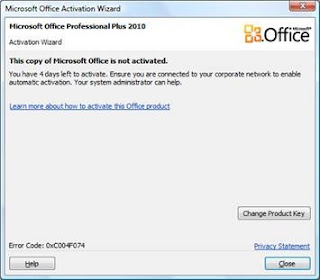
Hi friends, most of you face the problem with office 2010 after expire the product key. A notification always show to you when you are open office 2010 like the following image Now i am going to show you how we can activate my office 2010 for free.It will work 100% guaranteed. But this post in only for the student who can't afford to buy product key and also for home users. If you want it for Business purpose i highly recommend you to buy original product key by Microsoft . Follow these steps  step 1 - Open  My computer.  step 2 - Go to /C:drive.  step 3 - then, Go to folder named as program files (x86) [or else program files].  step 4 - Go to common files.  step 5 - Go to Microsoft shared .  step 6 - Then open folder OfficeSoftwareProtectionPlatform .  step 7 -Just double click on OSPPREARM file. [it open a pop up will blink]  step 8 - Download Microsoft Office Tool Kit. Click here to Download  step 9 - Once th...